
Graphics and audio settings
Choose a renderer, quality, frame limit and sound levels. Renderer changes use an explicit restart.
On this page
Open Settings
Choose Settings on the title screen or the in-game settings button. Graphics and Audio share one dialog. Opening it pauses an active run; closing it resumes. Quality, effects and audio controls apply live. Renderer changes take effect only after an explicit restart.
Renderer preference and recovery
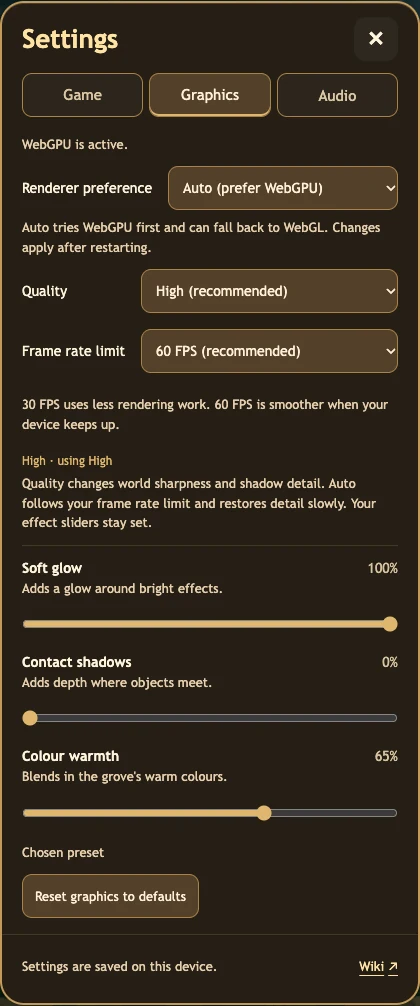
Auto (prefer WebGPU) tries WebGPU on the web and falls back to WebGL when needed. WebGL compatibility requests WebGL directly. Read the active renderer and reason separately from the saved preference: Auto can be saved while WebGL is actually running.
Choose a preference, then use Restart with Auto or Restart with WebGL when offered. Restart is available at the title or a safe saved preparation, not during combat or an unsaved action. Continue opens the last saved preparation after restart. A temporary recovery fallback does not overwrite your deliberate preference.
The development iOS build starts in WebGL on a cold launch while retaining the saved preference. An explicit restart from Graphics can apply your choice for that app session. The next cold iOS launch uses WebGL again. WebGPU stability on iOS remains under qualification; the hosted web and standalone HTML keep their web policy.
Quality and effects
| Setting | Effect |
|---|---|
| Quality: Auto, Performance, Balanced, High | Controls world sharpness and shadow detail; Auto follows the selected frame limit and restores detail gradually |
| Frame rate limit: 30 or 60 FPS | Caps the rendering target; it is not a promise of sustained performance |
| Soft glow | Glow around bright effects |
| Contact shadows | Depth where objects meet |
| Colour warmth | Warm colour treatment |
Your effect-slider choices stay set when quality changes. They are separate from the quality preset. Desktop first-run and Reset defaults are High with a 60 FPS limit; touch-first devices use Auto with a 30 FPS limit. Existing saved choices remain respected. Reset graphics uses the device defaults; resetting effects is not a renderer restart.
Audio
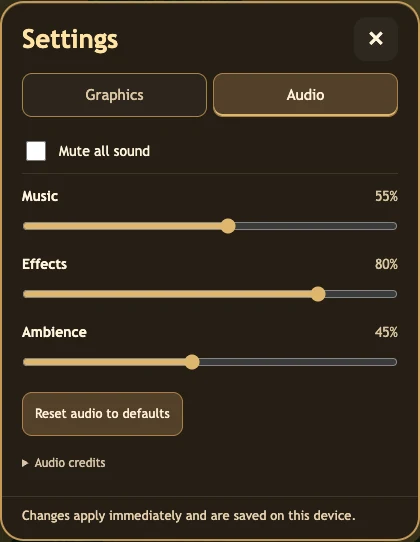
Music, Effects and Ambience have separate 0–100% sliders. Mute all sound keeps one overall mute state; M or the mute button toggles it. Reset audio to defaults restores the channel defaults.
Sound starts after a player gesture. Authored fallback sounds may fill in when an audio file cannot play. If sound itself is unavailable, play continues and the Audio status explains it.
Visual and sound cues
Friendly units have green outlines and enemies have red outlines. Soft glow is separate from those faction outlines. The evolved defenders and King Rex have distinct attack effects; presentation does not add unlisted damage or range.
The Effects channel includes Hunger’s Cartoon Slurp, Dinosaur Roar, Heavy Boulder Thud for Stomp, Key Collect for bones and Gem Collect for fossils. Repeated pickups are rate-limited so cues do not queue up.
Saved preferences
Graphics and audio preferences belong to this browser/device. Restricted or cleared storage can prevent persistence. Frame limits are settings, not measured FPS guarantees. For uneven performance, try Performance quality or a 30 FPS limit, and use the compatibility recovery option if graphics fail.